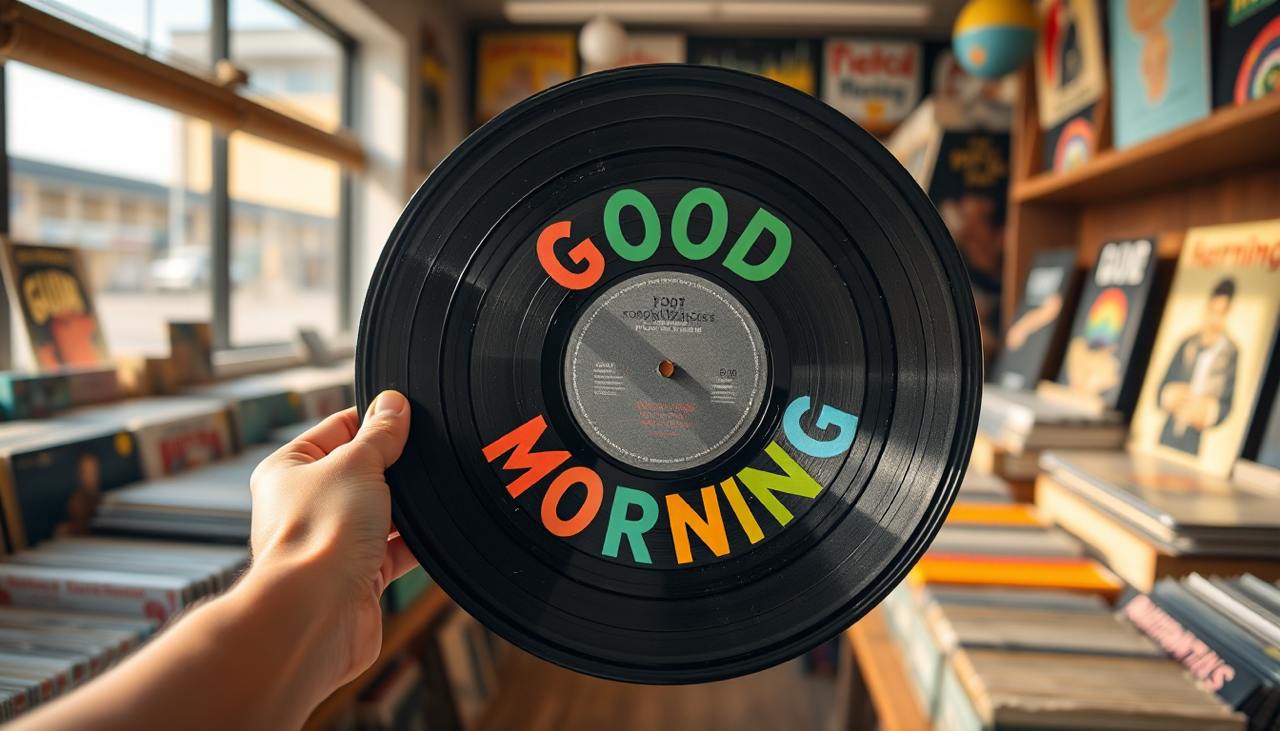
One of the most common frustrations for creators using AI image tools is this:
“Why does the AI butcher my text?”
Whether you’re designing a poster in Sogni Studio or another AI tool, creating a product mockup, or visualizing a campaign concept, you’ve probably run into distorted fonts, broken letters, or gibberish text in the results.
But here’s the good news: there are better ways to get clean, editable text into your visuals, and it doesn’t require fighting the model!
This Tips & Tricks guide is here to help you get better, cleaner, and more readable text on your AI-generated images.
Let’s break it down.
Why AI Struggles with Text
Many AI image models — including popular ones like Stable Diffusion and SDXL in Sogni AI tool suite — are trained to replicate visual patterns, not layout type. So when you ask for a specific phrase to appear in an image, the model guesses what that might look like, pixel by pixel. And that guess often misses the mark.
It’s not a bug, more so a limitation of some generations of diffusion models. But there are clever ways around it — starting with model selection.
Solution #1: Select a model designed for text, like Flux

If you’re designing a prompt with text, FLUX is currently in a class of its own for that task in the Sogni Studio model lineup. Flux’s advances in rendering text come from recognizing that text isn’t just another visual object — it’s a different class of data that has additional training data and architectural attention to preserve pixel-level accuracy and typography layout, much like a graphic designer would.
Flux is not perfect, but it can be quite accurate even with several groups of text. For the best chance at a perfect text layout, keep text short or render with a higher batch count to ensure you’ll have a few perfect options.

Many newer models like Flux have a great understanding of text but don’t have all the niche content and style expertise of our 100+ Stable Diffusion community “fine-tunes” which are still undefeated champions in their niches like Animagine XL for Anime or Pony XL for uncensored and quirky. You can still use these models with text; your mileage may vary, but here are some options that can really help your success rate and workflow.
Solution #2: Use Placeholder Prompts
If your goal is layout and structure (say, a campaign poster or a quote card), aim for prompts like:
- “blank white box for headline text”
- “empty product label with modern design”
- “poster with clean text area in the center”
Once generated, you can open your image in Sogni Studio and use tools like PaintOver to add your real message on top with clarity and control.
Solution #3: Get the Style, Not the Content
Instead of forcing the AI to write exact phrases, ask it to replicate text aesthetics:
- “graffiti lettering on brick wall”
- “retro pixel-style shop sign”
- “bold serif headline on vintage ad layout”
This gives you an atmospheric base. From there, drop the image into your design tool and overlay the actual text you want.
Solution #4: Generate First, Add Text Later
This is the cleanest method. Create your scene, focusing on light, balance, and subject placement. Then, after generation, bring in the text.
Whether it’s in one of Sogni Apps or another AI editing tool, adding typography after the image is generated gives you total control over size, legibility, contrast, and message clarity.
Bonus Tip: Simplicity Wins
When prompting, less is more. Instead of:
“poster that says ‘Dream Bigger’ in modern sans-serif font”
Try:
“modern poster layout with space for title”
This helps avoid weird or incorrect results and makes the image more useful for real design work.
Final Thought
Let the AI handle the visuals. You bring the message.
Whether you’re designing with Sogni Web, Sogni Pocket, or editing directly in Sogni Studio, combining the strengths of both human intention and AI assistance leads to sharper, more impactful creations.
And if you found this helpful, keep an eye on our Tips & Tricks series; we’re just getting started!
Download the Sogni apps (Studio, Web, or Pocket) and start creating your own visuals with text and without! Need inspiration? Explore our tutorials and creative tips on Sogni’s YouTube channel.